


Parametric Modeling with SOLIDWORKS 2020 14th edition by Paul Schilling, Randy Shih – Ebook PDF Instant Download/Delivery: 1630573132 , 978-1630573133
Full download Parametric Modeling with SOLIDWORKS 2020 14th edition after payment
Product details:
ISBN 10: 1630573132
ISBN 13: 978-1630573133
Author: Paul Schilling, Randy Shih
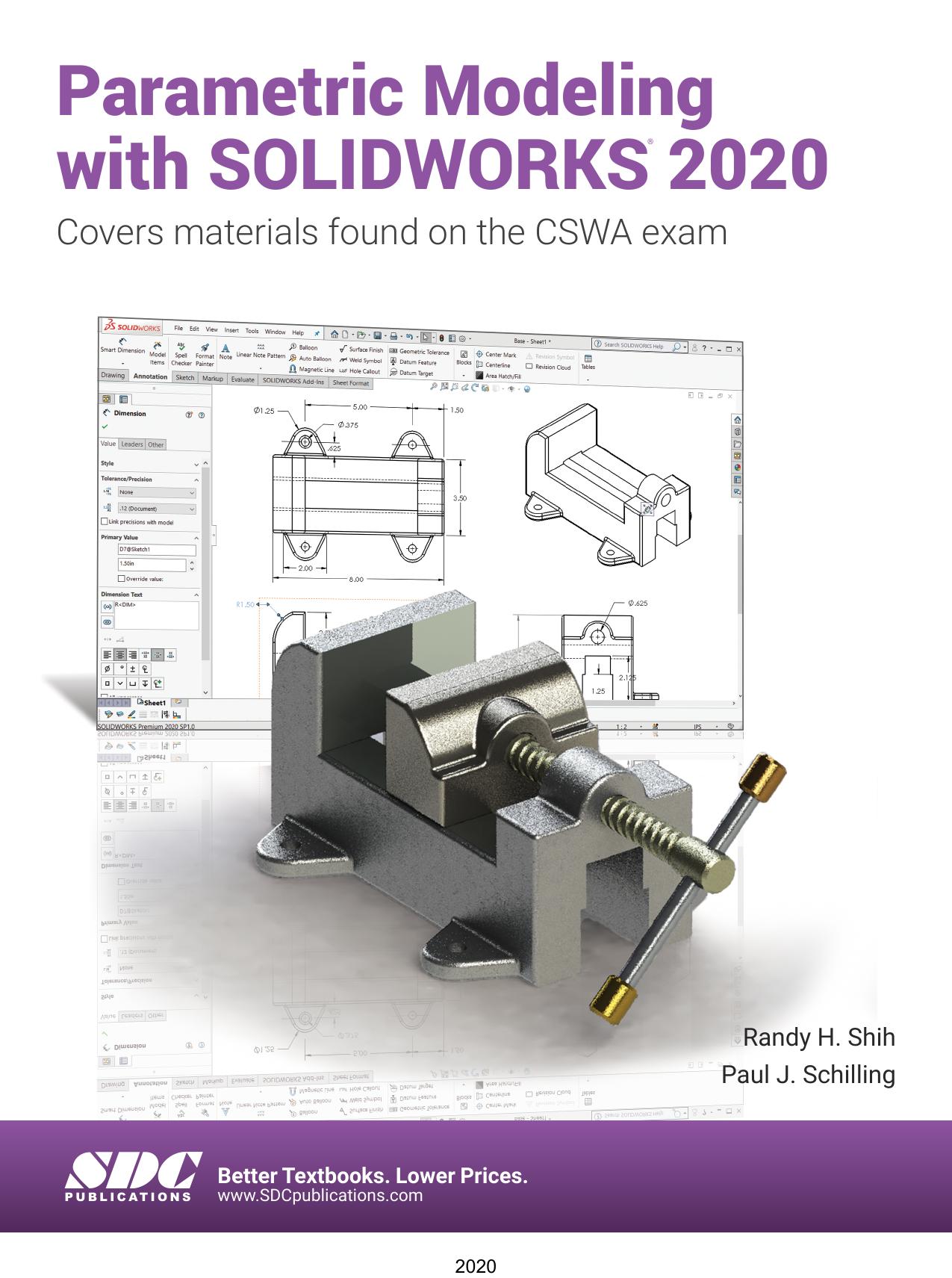
Parametric Modeling with SOLIDWORKS 2020 contains a series of seventeen tutorial style lessons designed to introduce SOLIDWORKS 2020, solid modeling and parametric modeling techniques and concepts. This book introduces SOLIDWORKS 2020 on a step-by-step basis, starting with constructing basic shapes, all the way through to the creation of assembly drawings and motion analysis. This book takes a hands on, exercise intensive approach to all the important parametric modeling techniques and concepts. Each lesson introduces a new set of commands and concepts, building on previous lessons. The lessons guide the user from constructing basic shapes to building intelligent solid models, assemblies and creating multi-view drawings. This book also covers some of the more advanced features of SOLIDWORKS 2020, including how to use the SOLIDWORKS Design Library, basic motion analysis, collision detection and analysis with SimulationXpress. The exercises in this book cover the performance tasks that are included on the Certified SOLIDWORKS Associate (CSWA) Examination. Reference guides located at the front of the book and in each chapter show where these performance tasks are covered.
Parametric Modeling with SOLIDWORKS 2020 14th Table of contents:
Chapter 1: Getting Started
Introduction
Development of Computer Geometric Modeling
Feature-Based Parametric Modeling
Getting Started with SOLIDWORKS
Units Setup
SOLIDWORKS Screen Layout
Mouse Buttons
[Esc] – Canceling CommandsOnline Help
SOLIDWORKS Search
Leaving SOLIDWORKS
Creating a CAD Files Folder
Chapter 2: Parametric Modeling Fundamentals
Introduction
The Adjuster Design
Starting SOLIDWORKS
SOLIDWORKS Screen Layout
Units Setup
Creating Rough Sketches
Step 1: Creating a Rough Sketch
Graphics Cursors
Geometric Relation Symbols
Step 2: Apply/Modify Relations and Dimensions
Changing the Dimension Standard
Viewing Functions – Zoom and Pan
Modifying the Dimensions of the Sketch
Step 3: Completing the Base Solid Feature
Isometric View
Rotation of the 3D Model – Rotate View
Rotation and Panning – Arrow Keys
Viewing – Quick Keys
Viewing Tools – Heads-up View Toolbar
View Orientation
Display Style
Orthographic vs. Perspective
Sketch Plane
Step 4-1: Adding an Extruded Boss Feature
Step 4-2: Adding an Extruded Cut Feature
Save the Part File
Questions
Exercises
Chapter 3: Constructive Solid Geometry Concepts
Introduction
Binary Tree
The Locator Design
Modeling Strategy – CSG Binary Tree
Starting SOLIDWORKS and Activating the CommandManager
GRID and SNAP Intervals Setup
Base Feature
Modifying the Dimensions of the Sketch
Repositioning Dimensions
Completing the Base Solid Feature
Creating the Next Solid Feature
Creating an Extruded Cut Feature
Creating a Hole with the Hole Wizard
Creating a Rectangular Extruded Cut Feature
Using the View Selector
Questions
Exercises
Chapter 4: Feature Design Tree
Introduction
Starting SOLIDWORKS
Creating a User-Defined Part Template
The Saddle Bracket Design
Modeling Strategy
The SOLIDWORKS FeatureManager Design Tree
Creating the Base Feature
Adding the Second Solid Feature
Creating a 2D Sketch
Renaming the Part Features
Adjusting the Width of the Base Feature
Adding a Hole
Creating a Rectangular Extruded Cut Feature
History-Based Part Modifications
A Design Change
FeatureManager Design Tree Views
Selecting a Material and Viewing the Mass Properties
Questions
Exercises
Chapter 5: Geometric Relations Fundamentals
DIMENSIONS and RELATIONS
Create a Simple Triangular Plate Design
Fully Defined Geometry
Starting SOLIDWORKS and Activating the CommandManager
Displaying Existing Relations
Applying Geometric Relations/Dimensional Constraints
Over-Defining and Driven Dimensions
Deleting Existing Relations
Using the Fully Define Sketch Tool
Adding Additional Geometry
Relations Settings
Parametric Relations
Dimensional Values and Dimensional Variables
Parametric Equations
Viewing the Established Equations
Global Variables
Viewing/Editing Equations and Global Variables Using the Dimension Modify Dialog Box
View Options in the Equations, Global Variables, and Dimensions Dialog Box
Direct Input of Equations in PropertyManager Fields
Completing and Saving the Part File
Questions
Exercises
Chapter 6: Geometric Construction Tools
Introduction
The Gasket Design
Modeling Strategy
Starting SOLIDWORKS
Creating a 2D Sketch
Editing the Sketch by Dragging the Entities
Adding Additional Relations
Using the Trim and Extend Commands
Adding Dimensions with the Fully Define Sketch Tool
Fully Defined Geometry
Creating Fillets and Completing the Sketch
Profile Sketch
Redefining the Sketch and Profile using Contour Selection
Selecting Items by Box and Lasso
Create an OFFSET Extruded Cut Feature
Alternate Construction Method – Thin Feature Option
Questions
Exercises
Chapter 7: Parent/Child Relationships and the BORN Technique
Introduction
The BORN Technique
The U-Bracket Design
Starting SOLIDWORKS and Activating the CommandManager
Applying the BORN Technique
Creating the 2D Sketch for the Base Feature
Creating the First Extrude Feature
The Implied Parent/Child Relationships
Creating the Second Solid Feature
Creating the First Extruded Cut Feature
Creating the Second Extruded Cut Feature
Examining the Parent/Child Relationships
Modify a Parent Dimension
A Design Change
Feature Suppression
A Different Approach to the CENTER_DRILL Feature
Suppress the Rect_Cut Feature
Creating a Circular Extruded Cut Feature
A Flexible Design Approach
Save Part File
Questions
Exercises
Chapter 8: Part Drawings and Associative Functionality
Drawings from Parts and Associative Functionality
Starting SOLIDWORKS
Drawing Mode
Setting Document Properties
Setting Sheet Properties Using the Pre-Defined Sheet Formats
Creating Three Standard Views
Repositioning Views
Adding a New Sheet
Adding a Base View
Adding an Isometric View using the View Palette
Adjusting the View Scale
Displaying Feature Dimensions
Repositioning, Appearance, and Hiding of Feature Dimensions
Adding Additional Dimensions – Reference Dimensions
Tangent Edge Display
Adding Center Marks, Center Lines, and Sketch Objects
Edit Sheet vs. Edit Sheet Format
Completing the Drawing Sheet
Property Links
Associative Functionality – Modifying Feature Dimensions
Saving the Drawing File
Creating a Drawing Template
Questions
Exercises
Chapter 9: Reference Geometry and Auxiliary Views
Reference Geometry
Auxiliary Views in 2D Drawings
The Rod-Guide Design
Modeling Strategy
Starting SOLIDWORKS
Applying the BORN Technique
Creating the Base Feature
Creating an Angled Reference Plane
Creating a 2D Sketch on the Reference Plane
Using the Convert Entities Option
Completing the Solid Feature
Creating an Offset Reference Plane
Creating another Extruded Cut Feature Using the Reference Plane
Starting a New 2D Drawing and Adding a Base View
Creating an Auxiliary View
Displaying Feature Dimensions
Adjusting the View Scale
Repositioning, Appearance, and Hiding of Feature Dimensions
Tangent Edge Display
Adding Center Marks and Center Lines
Controlling the View and Sheet Scales
Completing the Drawing Sheet
Editing the Isometric View
Questions
Exercises
Chapter 10: Introduction to 3D Printing
What is 3D Printing?
Development of 3D Printing Technologies
Primary Types of 3D Printing Processes
Primary 3D Printing Materials for FDM and FFF
From 3D Model to 3D Printed Part
Starting SOLIDWORKS
SOLIDWORKS Print3D Command
Using the 3D Printing Software to Create the 3D Print
Questions
Chapter 11: Symmetrical Features in Designs
Introduction
A Revolved Design: PULLEY
Modeling Strategy – A Revolved Design
Starting SOLIDWORKS
Creating the 2D Sketch for the Base Feature
Creating the Revolved Feature
Mirroring Features
Creating an Extruded Cut Feature using Construction Geometry
Circular Pattern
Drawing Mode – Defining a New Border and Title Block
Creating a New Drawing Template
Creating Views
Retrieve Dimensions – Model Items Command
Save the Drawing File
Associative Functionality – A Design Change
Adding Centerlines to the Pattern Feature
Completing the Drawing
Questions
Exercises
Chapter 12: Advanced 3D Construction Tools
Introduction
A Thin-Walled Design: Dryer Housing
Modeling Strategy
Starting SOLIDWORKS
Creating the 2D Sketch for the Base feature
Create a Revolved Boss Feature
Creating Offset Reference Planes
Creating 2D Sketches on the Reference Planes
Creating a Lofted Feature
Creating an Extruded Boss Feature
Completing the Extruded Boss Feature
Creating 3D Rounds and Fillets
Creating a Shell Feature
Creating a Rectangular Extruded Cut Feature
Creating a Linear Pattern
Creating a Swept Feature
Using PhotoView 360, Scenes, and Appearances
Questions
Exercises
Chapter 13: Sheet Metal Designs
Sheet Metal Processes
Sheet Metal Modeling
K-Factor
The Actuator Bracket Design
Starting SOLIDWORKS and Opening the Sheet Metal Toolbar
Creating the Base Feature of the Design
Creating an Edge Flange
Adding a Tab
Creating a Cut Feature
Creating a Bend
Flattening the Sheet Metal Part
Confirm the Flattened Length
Creating a Sheet Metal Drawing
Sheet Metal Bend Notes
Completing the Drawing
Questions
Exercises
Chapter 14: Assembly Modeling – Putting It All Together
Introduction
Assembly Modeling Methodology
The Shaft Support Assembly
Parts
Creating the Collar Using the Chamfer Command
Creating the Bearing and Base-Plate
Creating the Cap-Screw
Starting SOLIDWORKS
Document Properties
Inserting the First Component
Inserting the Second Component
Degrees of Freedom
Assembly Mates
Apply the First Assembly Mate
Apply a Second Mate
Constrained Move
Apply a Third Mate
Inserting the Third Component
Applying Concentric and Coincident Mates
Assemble the Cap-Screws using SmartMates
Exploded View of the Assembly
Save the Assembly Model
Editing the Components
Set up a Drawing of the Assembly Model
Creating a Bill of Materials
Editing the Bill of Materials
Completing the Assembly Drawing
Exporting the Bill of Materials
Questions
Exercises
Chapter 15: Design Library and Basic Motion Study
Introduction
The Crank-Slider Assembly
Creating the Required Parts
Mate References
Starting SOLIDWORKS
Document Properties
Inserting the First Component
Inserting the Second ComponentWe will
Apply Assembly Mates
Apply a Mate Using a Context Toolbar
Constrained Move
Placing the Third Component Using a Mate Reference
Assemble the CS-Rod Part
Inserting a Pin from the SOLIDWORKS Toolbox
Assemble the CS-Slider Part
Adding an Angle Mate
Collision Detection
Editing the CS-Slider Part in the Assembly
Basic Motion Analysis
Questions
Exercises
Chapter 16: Design Analysis with SimulationXpress
Introduction
The SimulationXpress Wizard Interface
Problem Statement
Preliminary Analysis
SOLIDWORKS SimulationXpress Study of the Flat Plate
Getting Started – Create the SOLIDWORKS Part
Create a SimulationXpress Study
Viewing SimulationXpress Results
Creating a Report and an eDrawings File
Accuracy of Results
Closing SimulationXpress and Saving Results
Questions
Exercises
Chapter 17: CSWA Exam Preparation
Tips about Taking the Certified SOLIDWORKSAssociate (CSWA) Examination
Introduction
The Part Problem
Strategy for Aligning the Part to the Default Axis System
Creating the Base Feature
Creating a New View Orientation
Completing the Part
Selecting the Material and Viewing the Mass Properties
The Assembly Problem
Creating the Parts
Creating the Assembly
Creating a Reference Coordinate System
View the Mass Properties
Questions
Exercises
Appendix
INDEX
People also search for Parametric Modeling with SOLIDWORKS 2020 14th:
what is parametric modeling in solidworks
how to do parametric modeling in solidworks
parametric modeling with solidworks 2020 pdf
what is parametric solid modeling
parametric modeling with solidworks 2021 pdf
Tags: Paul Schilling, Randy Shih, Parametric Modeling, SOLIDWORKS 2020